Affichage des articles dont le libellé est docker. Afficher tous les articles

31 mai 2016

Docker Cleanup

Most Docker newcomers are disappointed when,  at some time, after various experiments with Docker, they hit a no space left on device issue. Docker indeed do store all containers, images and volumes in /var/lib/docker, which can quickly grow to gigabytes.

One can find tons of blog post about how to cleanup this folder. Here I'd like to give my own tips, and to explain them in detail, so you don't run random command found by Googling the Internet.

/var/lib/docker is used to store :


  • docker images
  • docker container descriptors
  • docker networks descriptors
  • docker volumes
  • containers' layers (depends on the storage driver you used. Typically AUFS)

Terminated containers

I use docker a lot to experiment unix commands, so use to run docker run --it ubuntu bash. When you run a container without the --rm option, container still exists on disk after the command complete. So doing this will create tons of containers, and layers for things I modified on container's filesystem. For this reason I created an alias docker-run to ensure I don't forget this option. But this option can't be used with -d (run in background) so I can't use it when I want to run some backend service for testing purpose. 

As the end of the day, I have tons of stopped containers that I don't use anymore, and will just consume disk in /var/lib/docker. So I use this command to run some cleanup :

docker rm -v $(docker ps --filter status=exited -q)

this command do list all exited containers (thanks to status filter), and only dump their ID (-q). This ID list is used by the remove command to cleanup containers, including volumes they where using.

Unused volumes

Volumes ? Yes, when you run a container which has been built with a VOLUME command in it's Dockerfile, docker do implicitly create a volume on disk, and may copy data from container image in this volume. This can result in significant disk consumption. Removing a container with -v option do force docker to remove such volumes. This doesn't apply to bind mount volumes, only to volumes created by docker daemon.

If you already removed your containers without using -v, volumes remain orphaned in /var/lib/docker. You can remove them as well using :

docker volume rm $(docker volume ls -q -f 'dangling=true')

the "dangling" filter do select volumes that aren't referenced by any container.

Note: one can find many scripts to do comparable cleanup by directly making changes to /var/lib/docker. Those script where written before docker volume command was introduced in 1.9. Don't use them. Directly hacking your docker daemon storage isn't a good idea when you have a clean API for this purpose.

Unused images

You can also use a comparable dangling filter with images, this one will detect image layers that are not referenced by a tag, which in many cases is the result of running docker builds.

docker rmi $(sudo docker images -f "dangling=true" -q)


what about obsolete / unused images ?
You can find some script to detect images which aren't used by a container on your system. For production environment this can make sense, but for my workstation this would remove mostly all docker images, as most container I run don't keep running all day long.

Docker doesn't track image use by containers, this issue is tracking attempt to change this, so writing a garbage collector would be simpler. So far I'm using https://github.com/ndeloof/docker-gc to collect image usage based on docker events. Not perfect, but does the job.


Hope this helps.


04 décembre 2015

Docker Garbage Collector

When you play a bit with Docker, you end up after some time with a very classic filesystem full issue.

The first time you hit this issue, you learn the docker rm command and start using --rm option to launch containers. The issue here is container aren't destroyed when stopped/killed. Most of us do even have some cleanup alias/script to run something like

docker rm $(docker ps --filter status=exited -q)


You also can hit such an abusive disk usage issue as you get lot's of obsolete image stored on your disk after you tested various things pulled from DockerHub. Same cause usually has the same effect, so you add to your script some :

docker rmi $(docker images | grep “^” | awk ‘{print $3}’)


(based on https://gist.github.com/ngpestelos/4fc2e31e19f86b9cf10b)

So, what's next ?
First issue with such a script is you have to run it by yourself when something goes wrong.
Second issue is such a script do remove untagged images, but not tagged ones you won't use anymore. Some other script could remove all unused images, but will then in many cases force you to re-pull few images you use on a daily basis, but weren't running at the time you ran the cleanup.

To avoid such an issue, I've created a small tool : docker-gc

This tool do listen docker daemon for destroy events, so it knows when a container is removed, and can capture the image it used. This information is used, when the gc process list the unused images, to determine which one where used recently and should be kept - as I assume you will reuse the same image on a regular basis - and which one weren't used for a long time and should be removed.

I'm sure there's many ways to improve the actual GC algorithm efficiency.

For convenience, tool is distributed as a docker image (what else ?) as ndeloof/docker-gc, just need to bind mount docker unix socket so it can interact with DockerHost daemon.

docker run -d -v /var/run/docker.sock:/var/run/docker.sock ndeloof/docker-gc


As a cool project needs a cool logo, I created one using a Jellyfish as a mascot to cleanup docker's ocean. 


Please note docker legal terms totally prohibit such a logo usage, so don't do such crazy logo hijack if you don't want Solomon's advocates to knock at your door. I'll welcome Laurel's pull-request to suggest another one :P

20 novembre 2015

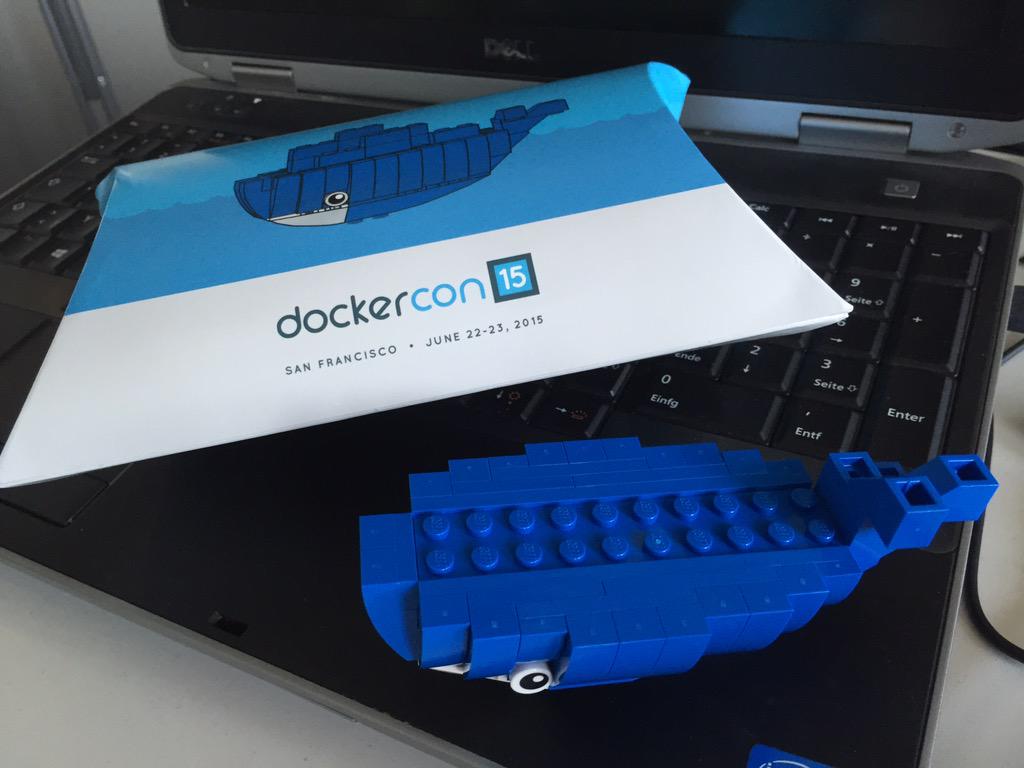
DockerCon'15 Lego Moby Dock

I went to DockerCon Europe'15, and will post some feedback about this conference on this blog later next week, but in the meantime I'd like to share with you a major information from Docker Inc :

They updated the Lego Moby Dock design !

Last year at DockerCon Europe, they offered all keynote attendees a lego set to build a small docker whale. You could then pick up "containers" to plug on it from sponsors booth. Was lot's of fun.


At Barcelona, they did the same, but used a more advanced Moby Dock model, bigger and with rounded body. This one is another proof of nice Lego design expertise, but as the previous model I'm disappointed by the tail design. Due to it's shape and angle with whale body it's hard to find adequate lego brick for this job.


Back from Barcelona, I spent some time (don't tell my boss) searching in kid's legos for the adequate block. Here is the result :


Tail is a bit to big compared to original design, but looks better imho. As I wasn't able to find where to send a pull-request for this, here is the instructions for you to do the same.

You'll need those extra block :


  • Remove existing tail, drop the 2x1 plate you won't need. 
  • Plug the two roof tile 45° blocks (304023) into the special angular 1x1 brick (407023). One on the standard mounting hole, the other on the back, which on this brick is a square hole with adequate weight to plug a brick. 
  • Add the two opposite slopping block from original set to complete the tail.


I made a lego digital designer model as this isn't such a trivial thing to explain this :)


If you can't find the angle brick, you also can use a 1x1 brick with two round slots (4583862) and plug the upper tail in opposite side.

I also made larger containers, to mimic the Docker logo. They're a bit too large for the model, but look nice. Just need to get some profile 2x1 brick (4210636) for the adequate container look.


Building instruction is left as an exercise to the reader :)


21 octobre 2015

First experiment with Tutum

I heard about Tutum from the time CloudBees was still a PaaS company and I considered them a newcomer competitor. I just read today announcement they have been acquired by Docker Inc, so wanted to know more. 


Tutum is actually not a PaaS but a deployment orchestrator and infrastructure manager you plug to your IaaS account(s). As I'm using Google Compute and this provider isn't supported, online help guided me to "bring your own node" option. This one installed an agent and immediately appeared connected on Tutum web UI.

First impression is important in IT for adoption, and Tutum do offer an awesome UX. Within few seconds I had my account setup and have found the adequate configuration informations. Need to admit they made an impressive work here.

So I have my infra setup and ready to host my app. Next step for me is to reproduce my environment, as I'm using docker-compose for local testing. 

Kubernetes or Amazon ECS both do offer the concept of running a set of containers as a single entity. Tutum has comparable concepts with Services (N replicas of a docker image) and Stacks (composition of services).  But all of them do rely on custom descriptor I would have to keep in sync and can't test locally. But according to announcement blog, Tutum also do support docker-compose so I could just use my existing setup, especially as my application does not require horizontal scaling nor replicas. 

After looking into details, Tutum stack syntax is actually the same (maybe a subset/superset ?) or docker-compose yaml syntax. 

So, I can see two significant benefits of Tutum :

1. no IaaS lock-in. I can rely on support Cloud providers or run my app on my own nodes, but still will benefit node management by Tutum. This looks to me like a real "private PaaS" i.e. my own hardware but still "as-a-service" experience.

2. same bits from dev to production. Both my docker image and stack definition are used on my development laptop and on my production service. So I can reproduce what happens on production at any time.

Need to experiment more, but looks very promising so far.


08 octobre 2015

RPiDocker Challenge

On Tuesday evening, we met with some of the BreizhCamp team and friends for our first "BreizhCamp Hacking Party". Our plan was to give the RPiDocker challenge a try.

At DockerCon, hypriot folks demonstrated running 500 (basic) web servers on a Raspberry Pi. This was the starter for hackers to do more, and Damien Duportal reached actual record of ... 2334 webservers running on a Raspberry Pi 2.

So, we met together with various ideas to make a better score...


  1. don't use a IP stack per container, but --net=host
  2. configure RPi hardware for max performances
  3. use swap on disk and/or zram - tweak vm.swapiness 
  4. disable everything (kernel modules and services) that we don't need. I even considered disabling sshd and connect to the RPi using serial console.
  5. enable memory overcommit
  6. use a tmpfs for /var/lib/docker so creating containers is faster and we don't spend hours waiting for thousands containers to start
  7. rebuild docker binary with Go 1.5, to benefit improved garbage collector
  8. run without docker. Really ? Yes! We wanted to know the system limits and then get some metrics on docker overhead.


And the result was .... 70 containers running.


During the 4 hours of our hacking party we were not able to get more than 70 containers, whatever configuration change is made.

We later discovered Damien's hack recipe which is comparable in many ways, but do configure docker daemon LimitNPROC (max number of child processes) to infinity. It's odd this isn't the default. My naive vision of a Unix system is root can do anything, and don't have any restrictions. With capabilities this isn't the case - lesson learned.

Remaining question is to know how we should have understood deamon was blocked by some systemd settings. daemon.log didn't told us much, not sure what we should have been looking for.

Anyway, we now have a set of recipes to setup a RPiDocker system and experiment. We share our tweaks and still experiment on them to mix with Damien's ones. I don't have (yet) a RPi2 so can't give actual challenge metrics, but so far on my RPi 1BRev1 I can run up to 1400 web servers.


And we have some more ideas to get more :P
Wait and see ...

22 septembre 2015

Contributing to Docker

At some time, the hack you build with docker do hit some limitations, and you have few options :

  • give up
  • complain
  • work around
  • contribute

On this blog post I'll focus on the last one.

Working on CloudBees Docker Custom Build Environment Plugin (aka "oki docki"), I had to use docker exec and pass extra environment variables, but it doesn't offer such an option. To get my work done I used a workaround assuming env is available in the target container, but was not pleased by this option.

So on my spare time (sic) I've looked into Docker code, and understood this option isn't supported because ... nobody asked for it so far - actually, IIUC, the underlying RunC container engine fully support passing environment from exec, as the plumbing code is actually shared with docker run.

Getting the project

I made few mistakes before I understood Go programming conventions. So, created ~/go and declared GOPATH accordingly, then cloned docker git repo under $GOPATH/src/github.com/docker. With this setup, I can open the project root in Intellij Idea with Go plugin installed, and get a nice development environment.

I'm far from being fluent in Go language, but docker source code is modular so make it pretty simple to search, and Idea can be used to lookup method usage and such things.


As a result, I added few lines of code

Building

Docker builds inside Docker - and docker is running on my machine inside boot2docker. This Russian dolls setup makes the build process a bit complex.

First, prepare a development environment. For this purpose simply use the Dockerfile present at docker project root:

docker build -t dry-run-test .

Use this docker image, bind mounting the project source, to cross-compile docker binary

docker run --privileged --rm -ti -v `pwd`:/go/src/github.com/docker/docker docker-dev hack/make.sh binary cross

You will get the binary for all platforms created under bundles/1.9.0-dev/cross

Testing

As I'm a both lazy and a Java developer I can't read ngrep output and learn how to, so installed Charles Proxy and ran :

unset DOCKER_TLS_VERIFY

http_proxy=http://127.0.0.1:8888 ./bundles/1.9.0-dev/cross/darwin/amd64/docker exec --env FOO=BAR 1234 bash


Cool, now have to build and run the docker daemon and check how to get this new option passed to the container engine. Time to get back to work :)

21 septembre 2015

Introducing docker-slaves jenkins plugin

I was at DockerHackDay with Yoann on Thursday, and we implemented together a hack we had in mind for a while without time to actually work on it. So, 48 hours later we are proud to announce: 

Jenkins Docker Slaves Plugin

Why yet another Jenkins / Docker plugin ? Actually, there's at least 3 of them, including one I created last year, but all of them do rely on Docker as plain old virtual machines.


For this projet, we wanted to embrace Docker and the container paradigm. Don't run more than one process in a container. Have containers to communicate through links you explicitly setup. Rely on volumes for persistent data.

Docker Slaves plugin do workaround some Jenkins API that haven't been designed to manage Containers. 

The most obvious of them is the Cloud API, which uses a NodeProvisioner to determine when a new node is required, and when to shut it down. This API has been designed for virtual machines, as costly resources which are slow to setup and as such have to be kept online for few builds. Containers are lightweight, start in milliseconds, and there's no reason to reuse one vs create a fresh new dedicated one for another task. 


Another API mismatch is how Jenkins do launch commands on build executor. Jenkins do rely on the slave agent to some way run `System.exec()`. So Jenkins remoting act as a remote process executor. But what's Docker after all ? It's a remote process launcher (with some extra features) ! So we just bypass the Jenkins Remote Launcher to run a plain `docker run` from Jenkins master. In future, we could run this in detached mode, then Jenkins would not even need to stay online as the job is running, and could be restarted... 

Last but not least, there's no need to use the same container to run all commands. This actually prevent some plugin to apply new environment variables setup by build wrappers, or require some terrible hacks as a workaround. Our plugin is just launching a fresh new container for all command, so can setup the adequate environment. The UI does not (yet) offer this option, but one could imagine user can run some build steps with a docker image and some later steps with another one.

This also means running some background process as part of the build, which used to be a hack in build script, with various cleanup issues - Xvnc plugin, I'm looking at you - isn't necessary anymore. If you want to run Selenium tests, then just run a Selenium container side by side with your build container(s), and thanks to shared network setup you can run selenium tests without any extra configuration.


See the plugin repo README for more details, give it a try, and let you know how it goes !

14 septembre 2015

Giving Windows Docker containers a try

I've been experimenting a few with Windows Docker Containers, aka "Windows Server Containers Technical Preview 3". Windows 2016 will offer kernel-level container capabilities and the adequate glue code to offer Docker API (actually, RunC) so we can use Docker to create and run containerized Windows applications.

Please note : this is all about Windows applications running on Windows 2016, Docker is not a Virtual Machine runtime, so you won't get existing Linux images running on Windows 2016, neither can you run some Windows software on your Linux system.

So, I've created a Windows 2016 VM on Azure (which was simpler than downloading 6Gb from MSDN), following https://msdn.microsoft.com/virtualization/windowscontainers


The VM comes with a single image pre-installed : windowsservercore. We will use this base image to create our own images, just like we used to do starting our Dockerfile with FROM ubuntu. Most significant difference is this base image is 9Gb large, but hopefully you will never have to download it as it will come pre-installed on container-enabled windows releases.

First thing I noticed, starting a new container takes some significant time. Starting a linux docker container takes few tenths of a seconds, so that you feel like your program started without delay. Running a windows container takes 14s on my experiment (running on an Azure D3 box : 4 core 14Gb).


Second thing, my plan was to experiment by creating a windows jenkins-slave container, and for this purpose I need to download a JDK. I had to google a few then switch to PowerShell so I can run wget command to download Oracle JDK windows 64 installer.

Then I used notepad.exe (sic) to edit a Dockerfile, to install JDK in a container. My experiments stopped here, as I can't find how to launch the installer, always get weird error "

The directory name is invalid.
The command 'cmd /S /C C:\install\jdk.exe' returned a non-zero code: 1

Tried also with unix style path, same issue.

I also got a container I can't stop. I have no idea about this container state, but it's annoying I can't kill it, as docker daemon is supposed to have super-power on all container running and can force a SIGKILL, or windows equivalent, which seems to be only partially implemented. But let's remember we are running on a beta preview here.


Conclusion : considering Microsoft commitment to provide a container solution on Windows is just one year old, this is an encouraging preview. There's also lot's we have to learn to adapt the habits we have for Linux-based docker image to Windows, it seems the windows docker runtime do use Unix paths, which might results in some confusion when running windows commands in a Dockerfile. But the feeling I have after this experiment is I'll come back in few months when this get polished a few.


Update
As suggested by David, I've tried to use Chocolatey and use it to install a JDK. And this works well !

C:\Users\nicolas\dock  docker build -t java .
Sending build context to Docker daemon 2.048 kB
Step 0 : FROM windowsservercore
 --- 0d53944cb84d
Step 1 : RUN @powershell -NoProfile -ExecutionPolicy Bypass -Command "iex ((new-object net.webclient).DownloadString('https://chocolatey.org/install.ps1'))" && SET PATH=%PATH%;%ALLUSERSPROFILE%\chocolatey\bin
 --- Using cache
 --- 82076c2bad03
Step 2 : RUN chocolatey install -y jdk8
 --- Using cache
 --- 84f6a8356fe3
Successfully built 84f6a8356fe3

C:\Users\nicolas\dock  docker run -it --rm java cmd

...
C:\Windows\system32  java -version
java version "1.8.0_60"
Java(TM) SE Runtime Environment (build 1.8.0_60-b27)
Java HotSpot(TM) 64-Bit Server VM (build 25.60-b23, mixed mode)

C:\Windows\system32

Next step is for me to use this to setup a JNLP windows jenkins slave and check how it goes compared to a classic windows VM.

Moving my demo to Docker

Last Thursday I went to local Java User Group for the very first run of my new talk "(Docker, Jenkins) -> { Orchestrating Continuous Delivery }".

I've planned for this talk since june, but actually started to work on it on ... Tuesday, and got demo setup on Thursday in the morning :-\ As an expected result, the demo all failed, while the talk was mostly appreciated afaict.

How to make my demo more reproducible ? Hey, this is what the conference is talking about after all : setup reproducible build environment using Docker containers ! So let's use the same technique to host the demo itself.

The demo is using Cloudbees Jenkins Enterprise docker image, jetty to deploy built web apps, and docker registry to deploy docker images. I could run them by hand, but sounds better to rely on docker-compose to handle all the plumbing !

# Jenkins master, running on default http 80 port
jenkins:
  image: cloudbees/jenkins-enterprise
  ports:
    - "80:8080"
    - "50000:50000"
  volumes:
    # JENKINS_HOME, from host with pre-defined demo jobs
    - ./jenkins-home:/var/jenkins_home
    # Required host stuff so jenkins can run `docker` command to start containers
    - /var/run/docker.sock:/var/run/docker.sock
    - /usr/local/bin/docker:/usr/local/bin/docker
  volumes_from:
    # We "deploy" to jetty with a plain `cp`
    - webserver    
  links:
    - webserver
    - docker-registry
  user: jenkins:100 # 'docker' group, required to access docker.sock  

# Jetty web server to run tests, staging and production
webserver:
  image: jetty:9
  ports:
    - "8080:8080"
  volumes:
    - ./webapps:/var/lib/jetty/webapps

# Our private docker registry
docker-registry:
  image: registry
  ports:
    - "5000:5000"


The demo relies on a set of preconfigured jobs, so jenkin-home is bind mounted from the demo root directory. I had to configure bunch of .gitignore rules so I can share this config but not the build history and all other local jenkins stuff.

Webserver webapps directory could not be bind mounted, just relying on volumes, but then I get a permission error when Jenkins jobs tries to copy the war to jetty's volume. This could be fixed if we have #7198 resolved.

As the demo do run some docker tasks, I'm bind-mounting docker unix socket and cli executable in jenkins container, so it can build and start new containers. Docker Workflow plugin demo do use Docker-in-Docker for this, but I wanted to avoid using this hack (also read this). But a side effect is I need to configure the jenkins user with adequate permission so it can access the docker daemon socket, which means it has to be in the docker group. I'd like to use user: jenkins:docker, but the later doesn't work as --user do expect either a numeric ID, or user name for a declared user in the container, but not a host user/group name (I haven't found a related docker issue).

Last but not least, docker demo failed. I eventually understood the issue comes from bind mounted volumes.

JENKINS_HOME is set in jenkins container as /var/jenkins_home; this path is bind mounted from current directory /Users/nicolas/demo/jenkins-home. When docker-workflow creates as container to run continuous delivery pipeline steps inside containers, it tries to bind mount this exact same directory, but with my setup it does this on a side container (not a nested one, as in the original demo). As a result, this build container get some /var/jenkins_home/job/demo/workspace bind mounted, expecting to get there the project source files; but such a file doesn't exists on host, resulting in JENKINS-28821. This could be fixed if workflow can detect it's running inside a container, and uses --volume-from. I'll investigate such a fix. In the meantime, I've created a symlink on host as an ugly workaround.

Ok, so this was not such a trivial thing, and there's few things to get polished, but with this setup I now can share my demo, cleanup my environment with git clean -fdx, and get it up and running with a simple docker-compose up.

27 décembre 2014

Multiple Dockerfiles for project

When you start to use docker for the application you're developing, you need to choose if the Dockerfile you write is designed to

  • Build from source and produce binary
  • Package built binary for production application
  • Build from source and hot-reload source code for quick development cycles

Docker doesn't let you (yet) set the file you want to use as a Dockerfile, and enforce your use Dockerfile.
A possible workaround is for you to define a "Build from source" Dockerfile at project root, so it can ADD the source directory, and build binary in a target directory, then add to this directory another Dockerfile designed to produce the production image, just adding the binary with runtime dependencies. You still miss the 3rd use case, that require the docker image you run to allow hot-reload of source code you bind-mount in container.

After some experiments with various approach, my preference is to build the Docker build context by myself. So I have 3 Dockerfiles : Dockerfile.dev, Dockerfile.build, Dockerfile.prod.


  • First one uses a VOLUME to access project source code and run the app with hot-reload enabled (typically, play run). This let you use your IDE to hack the code and see the resulting app running in Docker container.
  • Second one build the application and package it for production execution (mvn package). This is the reference build environment, the one you probably use for CI as well. You can setup Jenkins to archive the resulting artifacts, or can just run it and execute a cp or cat command to export it from Docker container.
  • Last one to use the built artifact (from previous step) and ADD it to another image that only define required runtime dependencies, so the image is as small as possible. Such an image can't be used isolated, as it relies on the build one, so for sample can't be used with trusted builds, until Docker team offer some way to support non-trivial build scenarios.

To work around lack of a --file option for docker build command (#2112), I'm passing the build context explicitly as a tar.gz archive - there is no overweight doing this, as docker build commands does the same with current folder.

gtar --transform='s|Dockerfile.dev|Dockerfile|' -cz * | docker build -t dev -

As I'm running OSX and the included tar command does not support --transform option (sic) I had to install gnu-tar with homebrew, so the gtar command I'm using. As this is not a trivial command this can be set within a makefile, so you can just run make dev|build|prod.

Hope this will be useful for you as well.